
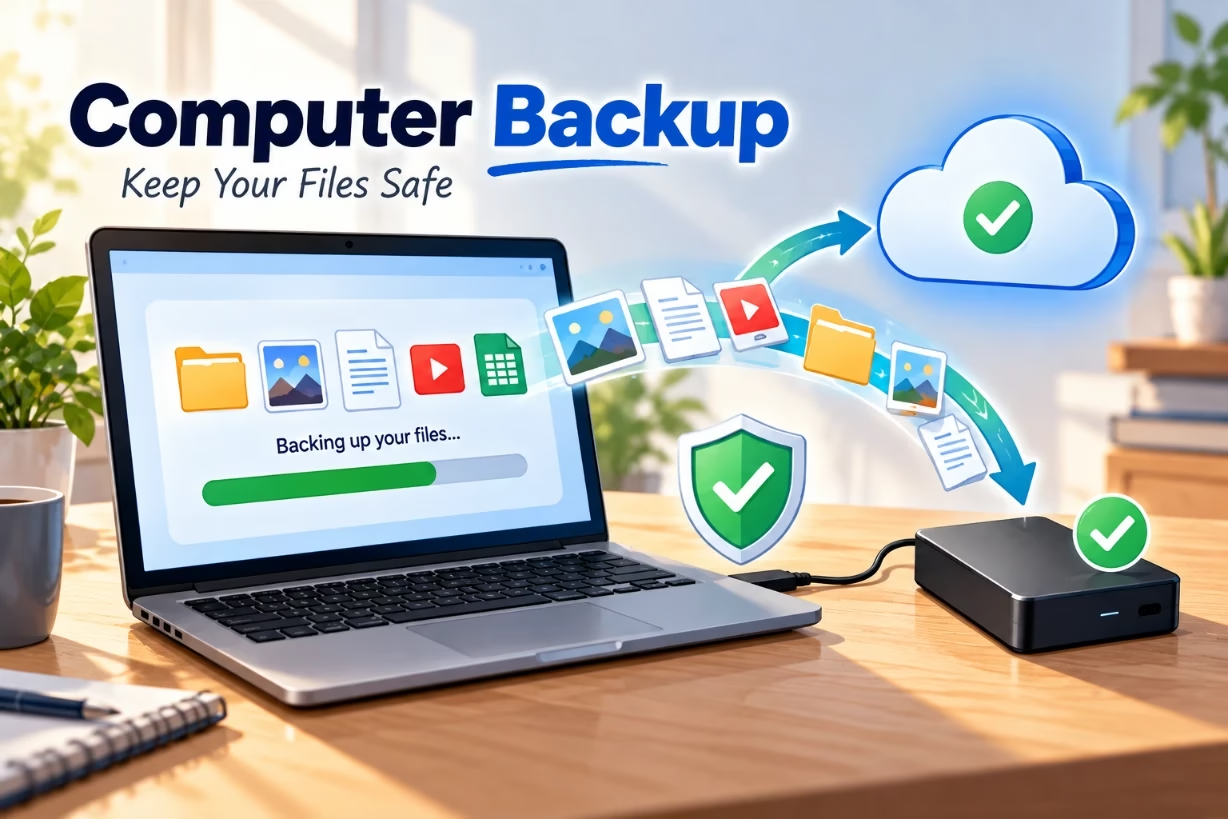
To backup your computer in easy simple steps, pick where your files will live (external drive or cloud), choose what you want to protect (documents, photos, system), turn on automatic backup, and test restoring a file. If you can restore it, your backup is working.
When people ask me how to backup your computer, I always think about that sick feeling when a laptop suddenly dies or a virus wipes everything. If you have not felt that yet, I hope you never do. A clear, simple backup plan is the best way to avoid that kind of stress, and it is much easier than most people think.
Why learning how to backup your computer really matters
I want to be blunt here. Hard drives fail. Laptops get stolen. Kids spill juice. Ransomware locks files. None of this cares how careful or smart you are. If you do not already know how to backup your computer, you are betting your memories, your work, and maybe your business on pure luck.
Think for a second about what is on your computer right now. Personal photos, taxes, school papers, client work, passwords, creative projects you spent hours on. If that all vanished this minute, what would hurt the most? That little gut twist you feel is exactly why you need a backup plan that runs on its own, in the background, every day.
The good news is that modern tools make this simple. You do not have to be “technical.” You just need a clear plan, some basic choices, and the discipline to set it up once and check it from time to time.
Step 1: Decide what you actually need to back up
Before you worry about tools, drives, or clouds, pause and figure out what you are protecting. When you ask how to backup your computer, what you really mean is how to protect the stuff you cannot replace.
Here is how I like to think about it:
1. Irreplaceable personal files. These are your top priority. Photos, home videos, family documents, school work, creative writing, music you made, anything that does not exist anywhere else. If you lose your downloaded Netflix shows, you can get them again. If you lose pictures of your kid’s first day of school, they are gone.
2. Work and study files. Reports, presentations, spreadsheets, code, notes, research, business documents. Sometimes these live in cloud tools already, but often there are local copies too. You should include these when you think about how to backup your computer, especially if deadlines or grades depend on them.
3. App settings and configuration. Browser bookmarks, email settings, saved templates, custom shortcuts. You can rebuild these, but it takes time. Some tools sync settings to the cloud, but not all. If you rely heavily on your setup, you may want backups that cover your whole system, not just files.
4. The whole operating system and programs. A full system image backup is like a snapshot of your entire computer at a moment in time. If your drive dies, you can restore that image and get back to almost exactly where you were. This is super helpful if you have a complex setup or limited time to reinstall everything.
Once you know what matters, you can decide how often to back up and which tools make sense for you.
Step 2: Choose where your backups will live
The next big part of how to backup your computer is choosing the right home for your backups. You want something you can trust, something that fits your budget, and something that fits your habits.
Option A: External hard drive or SSD
This is the classic, low-cost way. You plug a drive into your computer, set up backup software once, and let it run on a schedule.
Pros: Cheap per gigabyte, fast, and you keep full control. Great if you have a lot of big files like photos or videos.
Cons: If the drive sits right next to your computer, both could be stolen, burned, or flooded at the same time. Also, you must remember to plug it in if you are using a laptop.
What I suggest: For most people asking how to backup your computer, I suggest at least one external drive that is bigger than your internal drive. If your laptop has 512 GB, go for a 1 TB or 2 TB external drive so you have space for versions and growth.
Option B: Cloud backup services
Cloud backup tools run quietly in the background and send encrypted copies of your files to remote servers over the internet.
Pros: Your data is safe even if your house is robbed or damaged. You do not have to remember to plug anything in. Good for travelers, students, or anyone with a laptop they carry around.
Cons: Needs a solid internet connection, especially for the first big backup. Restoring huge amounts of data can take time. You pay a monthly or yearly fee.
What I suggest: If you can afford a modest subscription, a cloud backup service is one of the easiest answers to how to backup your computer without thinking about it all the time.
Option C: Sync services like Google Drive or OneDrive
These are great for documents, small projects, and active work folders. They sync certain folders to the cloud and across your devices.
Pros: Simple to use, nice for sharing and working across multiple devices. Often already included with your email or office suite.
Cons: They are not full backups. If a file gets corrupted or deleted and that change syncs, the bad version may overwrite the good one. Some have version history, but it is limited.
So when you think about how to backup your computer, use sync services as a helpful bonus layer, not your only safety net.
Step 3: Decide on your backup strategy (the simple 3-2-1 rule)
There is a popular rule that I like because it keeps things simple but strong: the 3-2-1 backup rule.
3 copies of your data. One is your main computer, the other two are backups.
2 different types of storage. For example, one external drive and one cloud backup.
1 copy kept offsite. That means not in the same room or building as your main computer, usually in the cloud.
For most regular users asking how to backup your computer, a very workable setup looks like this:
- Your daily computer use on your internal drive.
- Automatic backup to an external drive at home.
- Automatic cloud backup of your key folders or whole system.
This way, a single problem almost never wipes out everything.
Step 4: How to backup your computer on Windows
Let me walk through simple, practical steps for Windows users. I will focus on built-in tools first, because they cost nothing and are already there.
Use File History for personal files
File History is a built-in Windows feature that automatically backs up your personal files to an external drive or network drive.
Here is a basic path you can follow:
- Plug in your external hard drive.
- Open Settings, then search for “File History” or “Backup.”
- Choose “Add a drive” and pick your external drive.
- Turn on automatic backups and pick how often they run.
Once this is running, Windows will back up your documents, pictures, videos, and some other folders on a regular schedule. For many home users who want to know how to backup your computer quickly, this is a strong starting point.
Create a full system image (for extra safety)
If you want the comfort of knowing you can restore your whole system, not just files, set up a system image backup.
With a system image, if your drive fails, you can replace the drive, boot from a recovery media, and restore that image. It feels like traveling back in time to the day you created the snapshot, which can save hours or days of reinstalling.
Check your backups actually work
A backup you never test is a backup you do not really have. Once you think you have figured out how to backup your computer on Windows, pick one simple file you care about, delete it on purpose, and restore it from your backup. Seeing that file come back in front of your eyes is the best proof that your setup is working.
Step 5: How to backup your computer on macOS
If you use a Mac, the system already has one of the easiest backup tools I have ever used: Time Machine. If you are asking how to backup your computer and you own a Mac, you are lucky, because the process feels pretty smooth.
Set up Time Machine
You only need an external drive that is at least as big as your Mac’s drive, ideally bigger. Then you follow this kind of flow:
- Plug in the external drive.
- When your Mac asks if you want to use it with Time Machine, say yes. If it does not ask, open System Settings and find Time Machine.
- Select the drive as your backup disk.
- Turn on automatic backups.
Time Machine handles the rest. It makes hourly, daily, and weekly backups and clears old ones when the drive fills up. This is one of the most stress-free answers to how to backup your computer if you are on macOS.
Use iCloud as a second layer
Time Machine alone is great, but remember the 3-2-1 idea. To keep one copy offsite, you can store key folders in iCloud Drive so that they also live in Apple’s cloud. That way, even if your house and your external drive were both ruined, your most important personal files would still exist.
Test a restore with Time Machine
Just like on Windows, make sure you can restore something. Open Time Machine, slide back in time to an earlier version of a folder, and restore a file. The first time you watch a deleted or changed file come back to life, you will feel much more confident about how to backup your computer on your Mac.
Step 6: Protect your backups from threats and mistakes
Once your backup system is running, there are a few things I always do to keep it safe and healthy.
Use strong passwords and encryption
If you are using cloud backup or storing a portable drive that could be stolen, you want your data locked down. Always set a strong, unique password for your backup account. When possible, turn on encryption so that if someone finds your drive, they cannot simply plug it in and browse your life.
Keep at least one drive disconnected most of the time
Some types of malware and ransomware will try to attack every drive they can see. If your only backup drive is always plugged in, it might get hit too. A clever tweak to how to backup your computer is to rotate two drives: one connected for fresh backups, one disconnected and stored safely. That way, even if you get hit with a nasty attack, one backup should still be clean.
Watch your backup notifications
Backup software often warns you if it has not run in a while, or if something went wrong. Do not ignore those little messages. If your backup has been failing silently for months, you will only discover it on the worst day. Make a habit of glancing at your backup status once a week, maybe on the same day you take out the trash.
Step 7: How often should you back up your computer
The right schedule depends on how often your files change and how much loss you can stand. When people ask me how to backup your computer “often enough,” I like to use a simple question: If your computer vanished right now, how far back in time could you stand to go?
If you create or change files every single day, daily backups make sense. If you only use your computer hard a few days a week, maybe every other day is enough. Automatic hourly or daily backups are ideal, because then you do not have to think about it at all.
For most regular users, I suggest this rough schedule:
- Local external drive: at least once a day (or every time you plug in your laptop).
- Cloud backup: continuous or daily, running in the background.
- Extra offline copy: once a month, on a separate drive you store somewhere safe.
This might sound like a lot when you first learn how to backup your computer, but once everything is set to run automatically, your job is just to plug in drives sometimes and check that everything is green.
Common mistakes people make when backing up
I have seen the same problems pop up again and again. You can save yourself a lot of pain by sidestepping them from the start.
Only copying files once and calling it a backup
Dragging files to a USB stick one time is better than nothing, but it is not a real backup plan. Your life changes constantly. New photos, new projects, new downloads. True backup is about a system that keeps up with you, not a one-time copy.
Relying only on sync services
Google Drive, Dropbox, and similar tools are helpful, but they are not the full answer to how to backup your computer. If something deletes or corrupts a file and that change syncs, you can still lose data. Version history helps, but you may not notice in time. Backups and sync solve different problems.
Ignoring restore tests
I keep coming back to this because it matters. A backup you never test might be empty, broken, or missing your most important folders. Take five minutes to restore a test file every so often. That tiny habit turns your backup plan from a hope into a fact.
Keeping all backups in the same room
Fire, flood, theft, power spikes, even an unlucky lightning strike can damage everything in one spot. When you think about how to backup your computer in a serious, grown-up way, you always want at least one copy in another place, often as a cloud backup.
Teaching kids and family how to backup their computers
If you live with other people, or you are the “tech person” in your family, you can save them from heartbreak too. You do not have to give a long lecture. Just sit next to them, ask what matters most on their computer, and set up a simple backup for those things.
Talk about backup in normal language. Ask questions like “If this laptop died, which pictures would you cry about?” or “If this computer disappeared, what school files would you need back by tomorrow?” That kind of question shows them why learning how to backup your computer is not just some nerdy hobby, but a basic life skill now.
Putting it all together into one simple backup habit
So let me pull this together into a single clear picture. If you are serious about how to backup your computer in easy simple steps, here is the path I would follow:
First, list the folders and files that matter most. Photos, documents, work, and anything that cannot be replaced. Second, buy one or two external drives that are larger than your computer’s drive. Third, turn on your system’s built-in backup (File History on Windows, Time Machine on Mac) and aim those backups at your main external drive. Fourth, add a cloud backup or cloud sync layer for your most important personal files, so you always have something stored safely away from your home.
After that, test restoring a file, even a small one. When you see it come back, you will feel a surprising sense of calm. Then, once a week or once a month, glance at your backup status. Make sure things are still running. Adjust as your life changes, your storage fills, or your work shifts.
Once this becomes a habit, learning how to backup your computer stops feeling like a chore and starts feeling like locking your front door. It is just something you do to protect your space, your memories, and your future self from headaches you do not deserve.
Conclusion: Give your future self a break
If you remember nothing else, remember this: no one ever regrets having a good backup. People only regret not setting one up sooner. Taking a bit of time to learn how to backup your computer today is like leaving a gift for your future self, the one who might face a broken drive, a stolen laptop, or a nasty virus. When that day comes, your backup will not just save files. It will save peace of mind, time, and maybe even your job or your grades.
So pick your tools, start simple, and let your backups run quietly in the background while you get back to your life. Your data is worth it, and so are you.